
Shaped to your protocol
A notebook is your protocol expressed as forms, sections, and fields. Arrange them in the Notebook Editor in the order field workers will need them, mark what is required, and set which fields appear only when they are relevant.
Notebooks are built in the Notebook Editor, a web app that opens from the Dashboard. A notebook holds one or more forms, each form divided into sections, each section holding data input fields in the order collectors will meet them. Sections and fields can be renamed, reordered, duplicated, moved between forms, and hidden without being deleted.
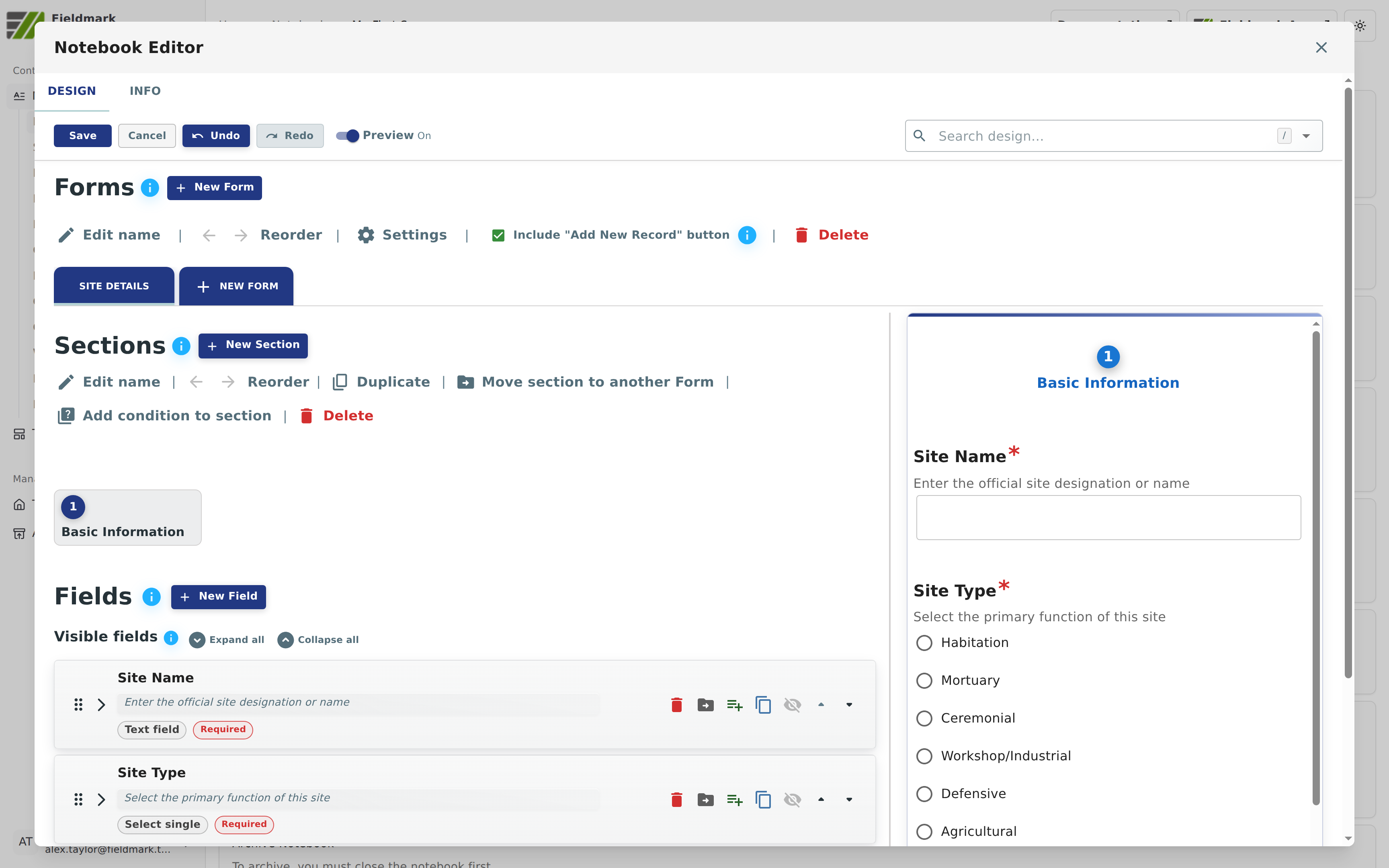
The Notebook Editor with the preview on: the design of the Basic Information section on the left, and on the right the form as a collector will meet it. The notebook is My First Survey, from the quickstart tutorial.
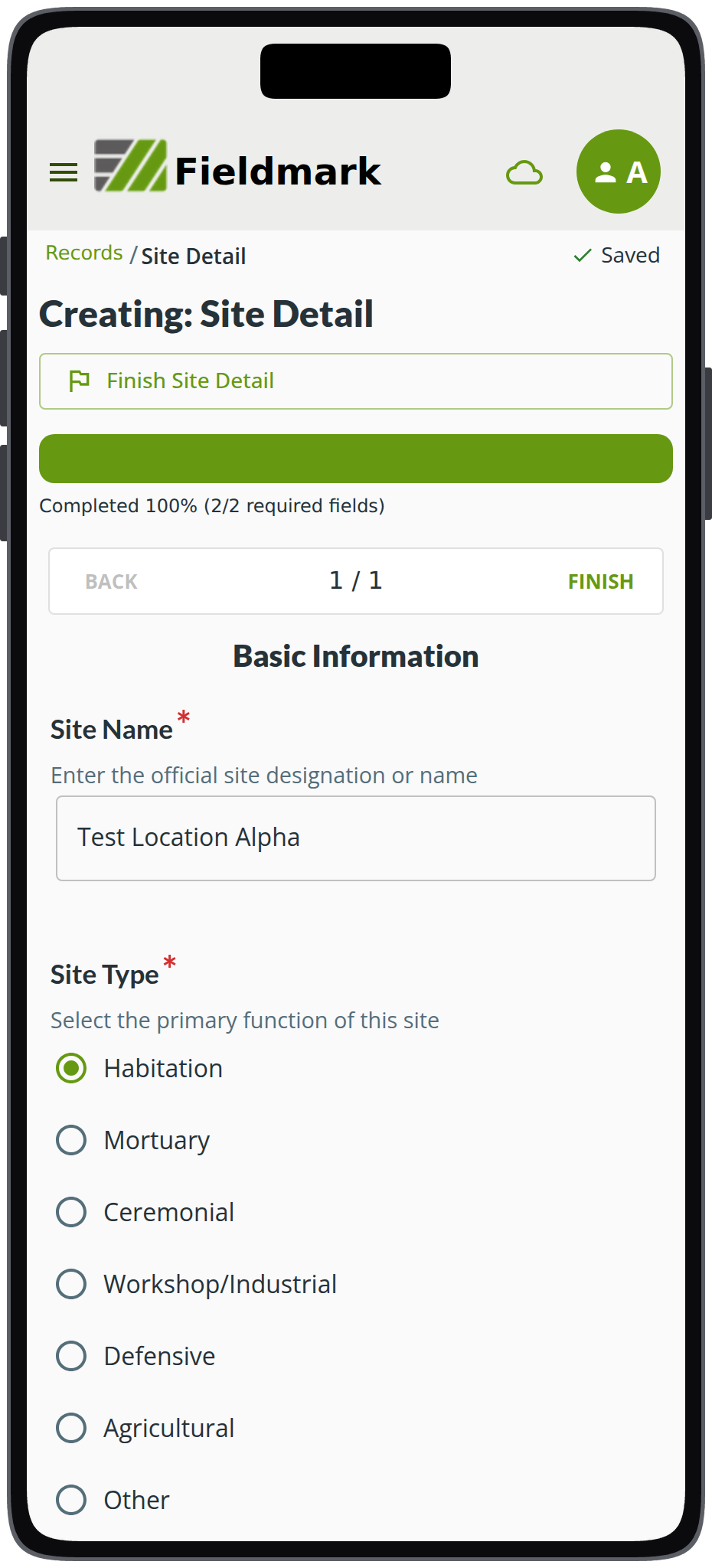
The Site Detail form as a collector meets it, with required fields starred and the count of required fields at the top. The notebook is My First Survey, from the quickstart tutorial.
Field types cover text, numbers, dates and times, choices, media and other attachments, GPS location and geometry data, relationships between records, and read-only display content. The full set, with what each one does, is in the field type reference.
Almost every field carries the same options panel. Mark a field Required, add a free-text annotation box beside it (for metadata or marginal notes), add an uncertainty flag a collector can tick (instead of a question mark in the data), or carry a value forward into the next record for things like recorder name and survey area.
How the form appears on the device follows the design: the section headings, the order of the fields, the required markers, conditional display, and the count of required fields still to fill.
Validation is designed for fieldwork rather than for a clean desk. An empty required field is flagged in the app, but saving and syncing still work, so a record is never lost because a value was not available at the time. Annotation and uncertainty values export as their own columns, so a qualified observation stays qualified all the way to analysis.
Conditional logic keeps long protocols short on screen. A field, or a whole section, can be set to appear only when another field holds a particular value. Conditions are evaluated as the collector works, and anything already entered into a field that later hides is kept, not discarded.
Whilst a notebook can be built from scratch, many need to run more than once, exactly or with some variation. Save a notebook as a template and the next season’s notebook, the next site’s, or the next team’s is created from it rather than rebuilt, so a protocol perfected in the field can be repeated exactly, or modified and redeployed. More on templates.
See also
- Works offline for what happens to a notebook once it reaches a device in the field, and the devices Fieldmark® runs on.
- Design once, run it every season for saving a design and deploying it again next season.
- Your data how you need it for export formats and taking the design with the data.
- Shared on your terms for who may change a notebook’s structure and who may export.
- Built to keep your records safe for revisions, the copy on every device, and what happens on the server.